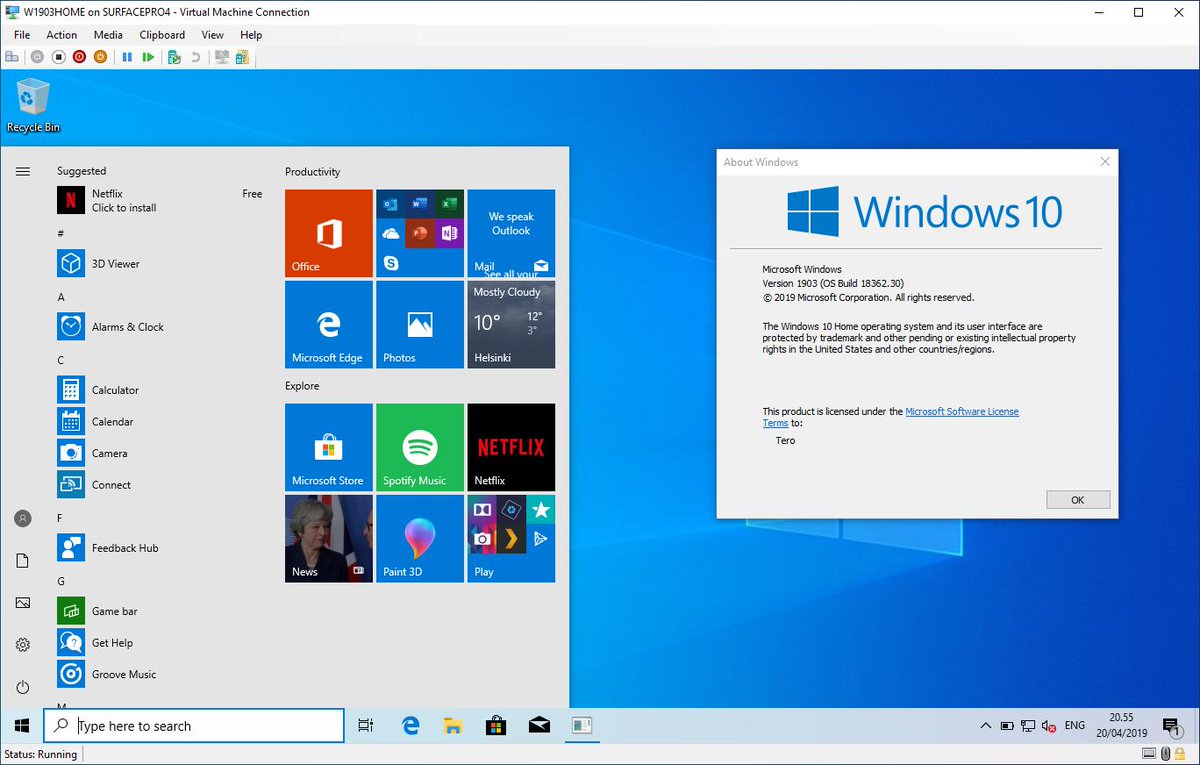
Windows usually releases 2 Major updates to Windows 10 on an Annual basis. These updates are released in March and September via the Annual Channel. However, due to the current condition our world is barely holding up, it seems Microsoft’s Bi-Annual Update has been delayed. But, it’s finally here.
The new Windows 10 is called Windows 10 20H1/2004 Update. Microsoft started rolling out the new Feature set for Windows 10 last week and it will reach the customers in the upcoming weeks. For people being who are enrolled in the Microsoft Insider Preview program, the update has already been received. My system updated to Windows 2004 on April 17 and it seems to be quite packed with new features; Nothing I have not seem beforehand as all these features have been released separately for testing purposes in the Fast Ring of Windows Insider Program.
The New 2004 update includes many improvements and a lot of New Features as well, which are:
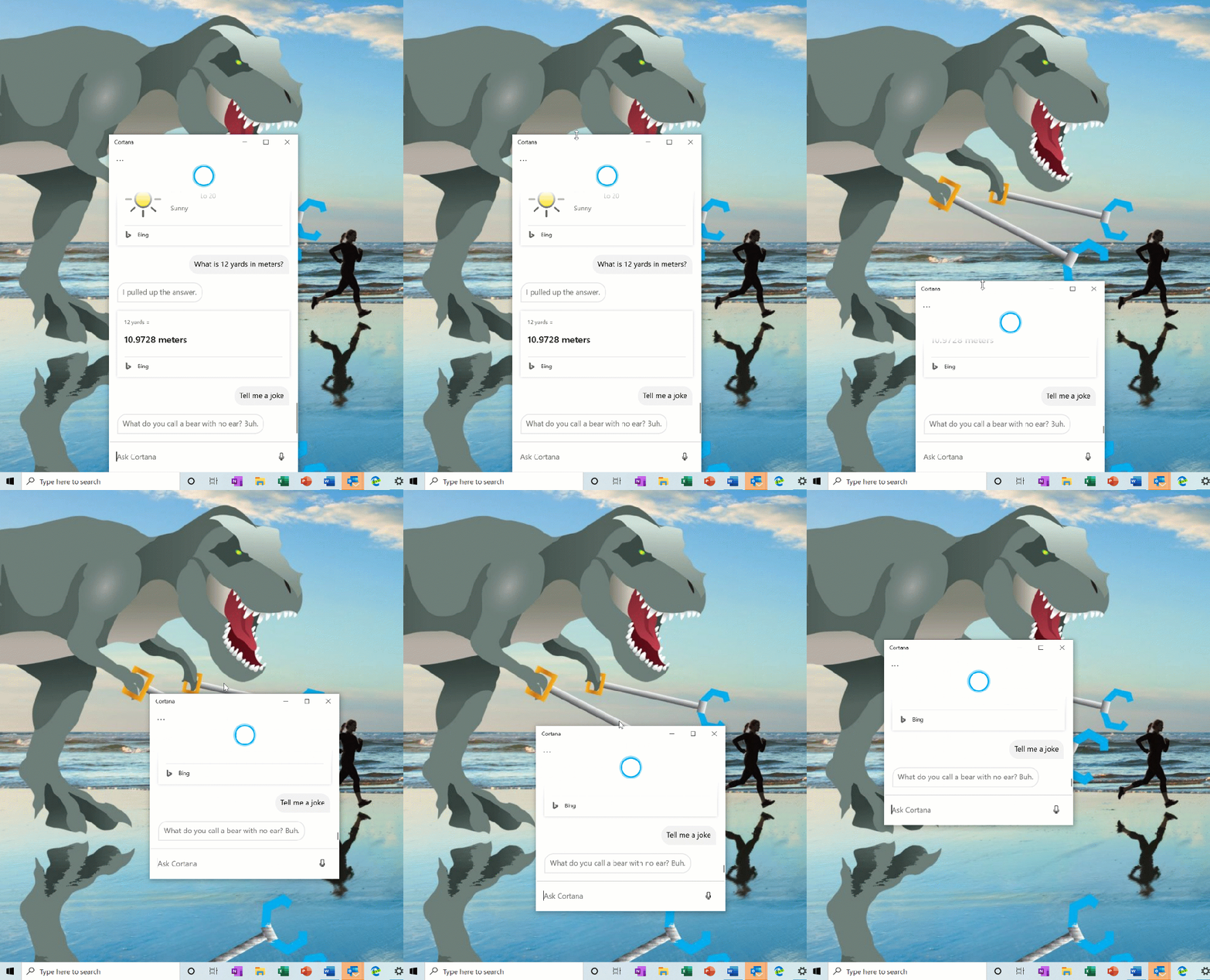
CORTANA ON WINDOWS(BETA): Microsoft has been trying their level best to develop Cortana from a General Ditgital Assistant to a Personal Productivity Assistant which is integrated into the Microsoft 365 apps. Microsoft has made a large amount of changes both Visual and in efficiency. With the new Conversational Cortana,Microsoft understands that you want to keep the chat going sometimes, and the default position of the window isn’t always where you’d prefer to have it docked if you’re going to have a longer back and forth. That’s why Microsoft is starting to roll out the option to be able to move the window (by dragging the title bar area), to anywhere you’d like on the screen–just like you can with other windows. You can also resize the window if you’d like.
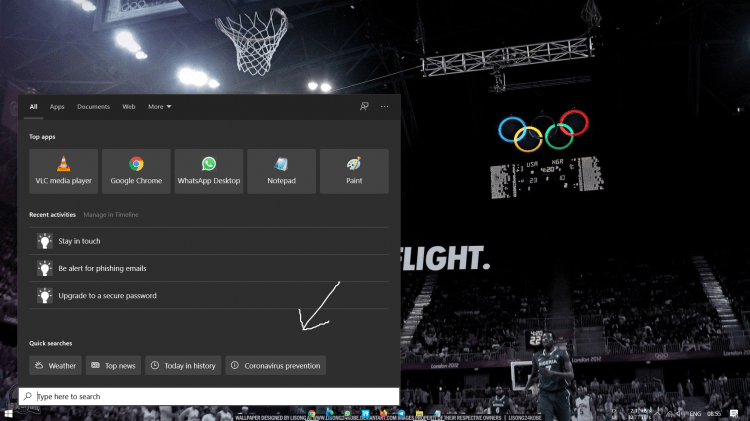
QUICK SEARCHES NOW IN SEARCH HOME
To help you find the info that matters even faster, Microsoft has added four quick web searches to your Search Home:
Weather: Get current conditions and the upcoming forecast
Top news: Read the latest headlines from popular news sites
Today in history: Explore four events that happened on this day
New movies: Find out what’s playing in theaters near you
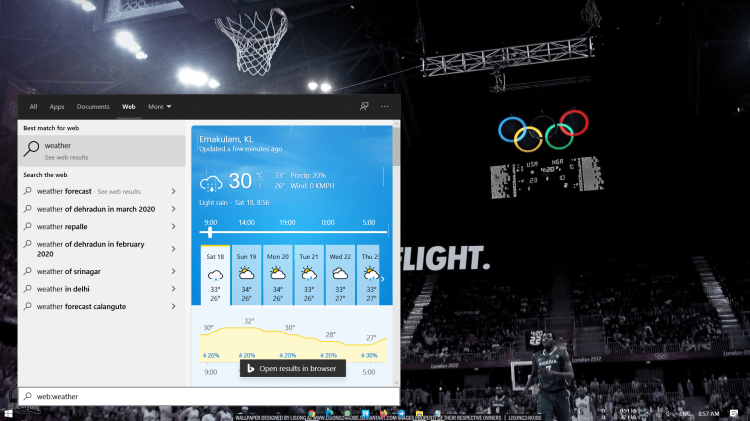
UPDATED DESIGN FOR WEB PREVIEW IN SEARCH RESULTS
MORE KAOMOJI
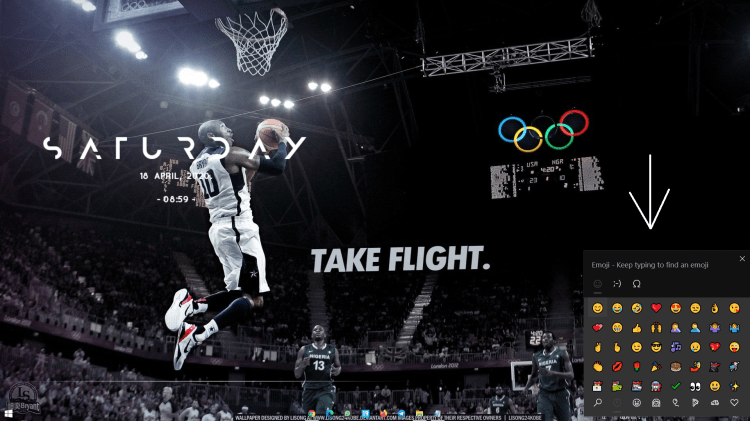
As some of you may know, with Windows 10 version 1903, Microsoft updated our WIN+(Period) / WIN+(Semicolon) keyboard shortcut to not only include emoji but to also now contain kaomoji and special characters. What are kaomoji? Basically, they’re faces with expressions you can make by combining various characters.
CONNECTING NETWORK CAMERAS TO WINDOWS 10 DEVICES
Network cameras, which are Internet Protocol-based cameras that transmit video data over a local area network (LAN), are becoming increasingly prevalent—especially in surveillance and security scenarios. Windows now allow users to associate network cameras to their PC, enabling photo capture and streaming of video in camera applications.
XBOX GAME BAR UPDATES
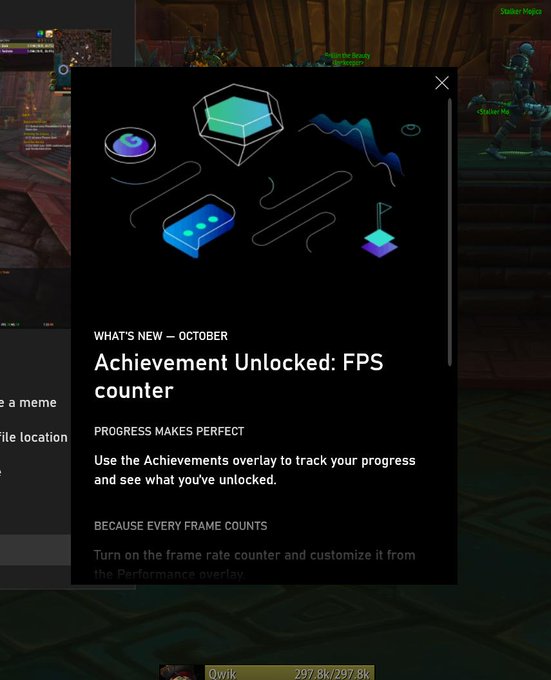
In case you hadn’t seen, Microsoft is starting to roll out an FPS counter and achievement overlay! The update will come via the Microsoft Store. Just set focus to your favourite game and press WIN + G to get started.
IMPROVING YOUR BLUETOOTH PAIRING EXPERIENCE
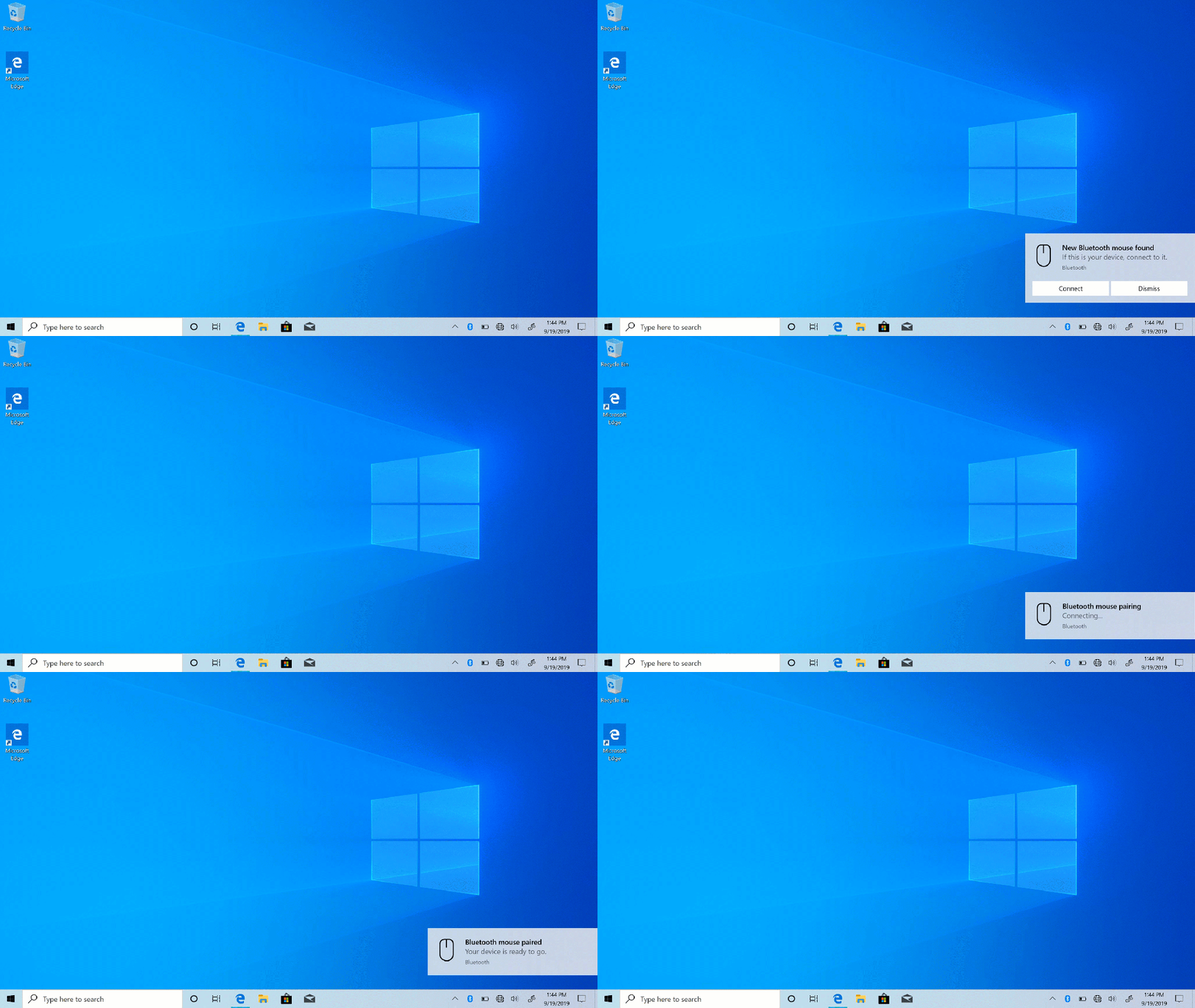
For Windows 10, version 1803, Microsoft announced a new streamlined experience for pairing supported Bluetooth devices. The idea was simple—if a supported device was nearby and in pairing mode, Windows will show a notification that prompted you to go through pairing. This saved you from opening Settings yourself and finding the right place to go. Today, Microsoft is rolling out an update with improvements Microsoft hopes you’ll like.
Pairing is all done in notifications now. You don’t need to go to the Settings app anymore to finish pairing. For faster pairing time, Microsoft has improved the UI by showing one less notification. Microsoft added a Dismiss button to the first notification to give you more control while using Swift Pair. To make the notification more helpful, now Microsoft shows the device name and category. Not all devices are supported as of now. Technically, Microsoft’s own devices are the only ones supported.
UPDATE ON VIRTUAL DESKTOP RENAMING
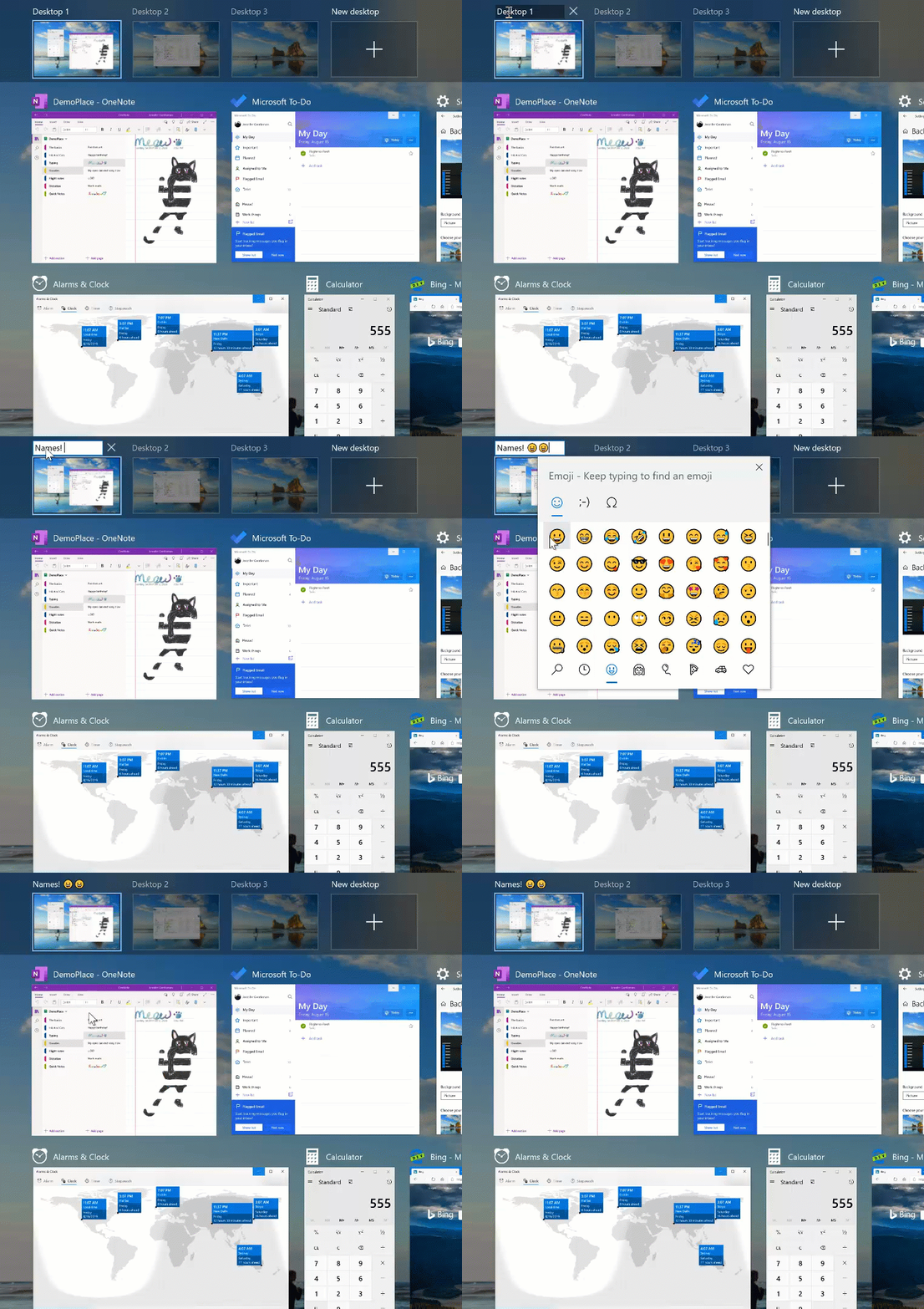
The ability to rename your virtual desktops is now available. Steps:
Open Task View by selecting the Task View icon in the taskbar or pressing WIN+Tab.
Select the New Desktop.
Select the desktop name (“Desktop 1”) and it should become editable, or right-click the desktop thumbnail and a context menu will appear with a Rename entry.
Input whatever name you’d like, and press enter.
Done!
INTRODUCING A NEW TABLET EXPERIENCE FOR 2-IN-1 CONVERTIBLE PCS!
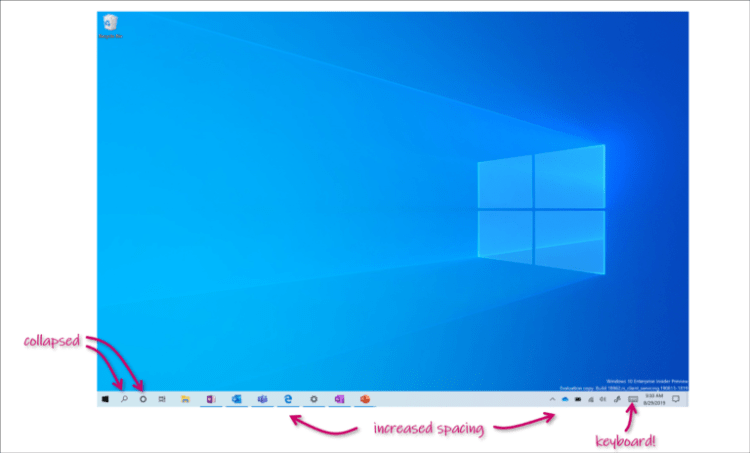
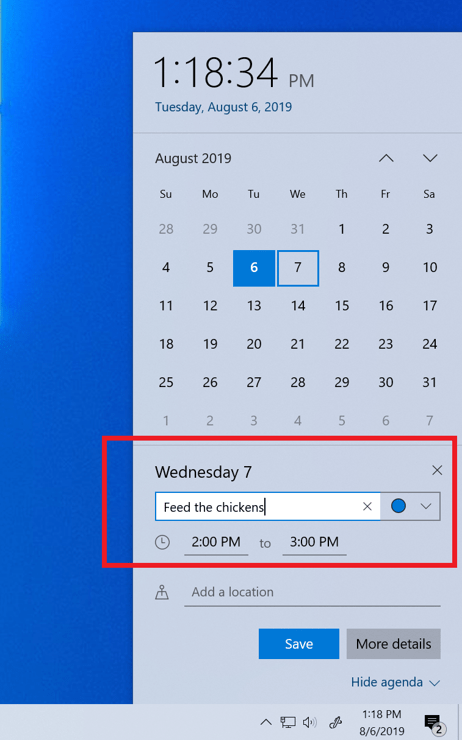
QUICK EVENT CREATE FROM THE TASKBAR
You can now quickly create an event straight from the Calendar flyout on the Taskbar. Just select the date and time at the lower right corner of the Taskbar to open the Calendar flyout and pick your desired date and start typing in the text box. You’ll then see inline options to set a time and location.
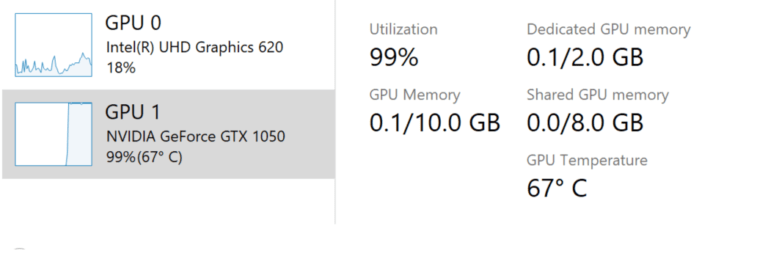
GPU TEMPERATURE COMES TO TASK MANAGER
If you have a dedicated GPU card, Microsoft will now bubble up the current temperature next to its listing in the Performance Tab.
RESET YOUR PC FROM THE CLOUD
Reset this PC provides users a new choice to download Windows or use local reinstall. Previously, Reset this PC was only able to do a local reinstall and would build a new Windows installation from existing Windows files. When this feature was introduced in Windows 10 version 1507, it provided the advantage of enabling Windows to be recoverable without requiring extra disk space to store a compressed, backup copy of Windows in a hidden partition. The cloud download option will reinstall the same build, version, and edition, that is currently installed on your device. This new cloud download option is available to all Windows 10 devices and is different from the “Recover from the cloud” feature available on some earlier Windows 10 devices.

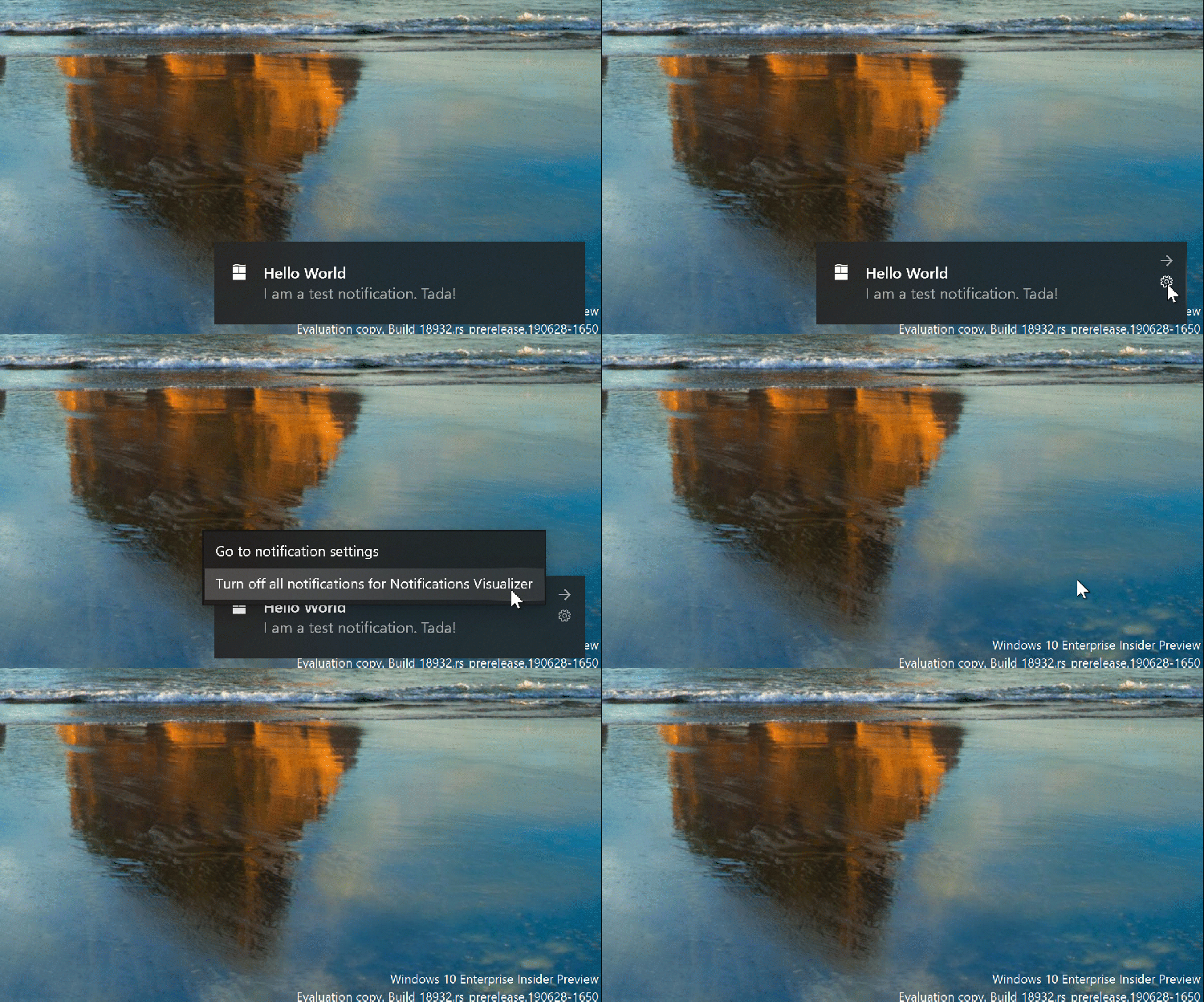
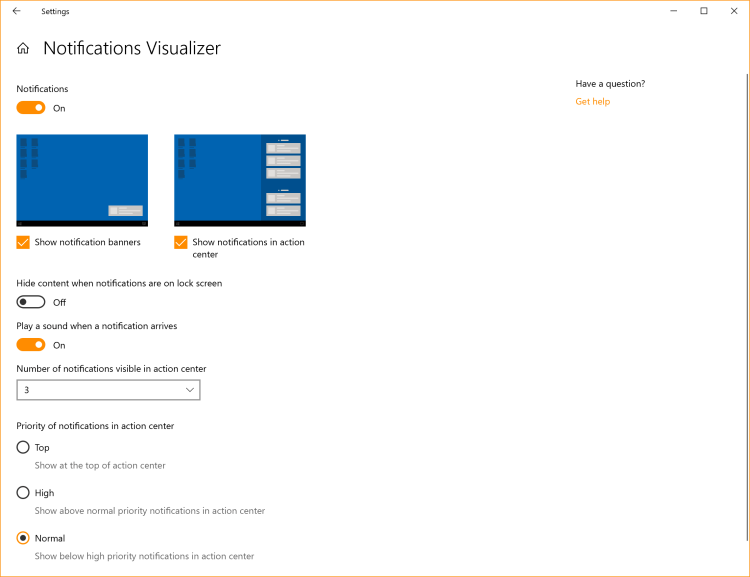
REFINING YOUR NOTIFICATION SETTINGS
Notification settings in Windows aren’t easily discoverable. In addition, once you find the settings, they can be a real nightmare for the uninitiated. In order to address this, Microsoft has begun rolling out a few changes.
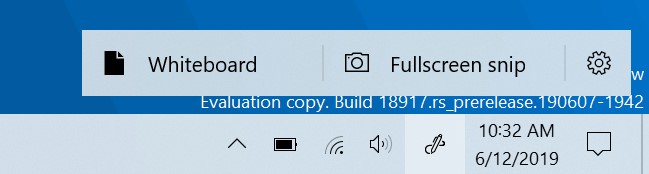
WINDOWS INK WORKSPACE UPDATES
As part of this, Windows Ink Workspace now takes up less screen real estate, and Microsoft is converging their whiteboarding experiences with a new direct link to our Microsoft Whiteboard app. Microsoft Whiteboard is a freeform digital canvas where ideas, content, and people can come together. It includes an infinite canvas, optional backgrounds (including graph paper and solid dark grey) to choose from, rainbow ink support, multiple pages, and generally addresses much of the feedback you shared with Microsoft about Sketchpad.
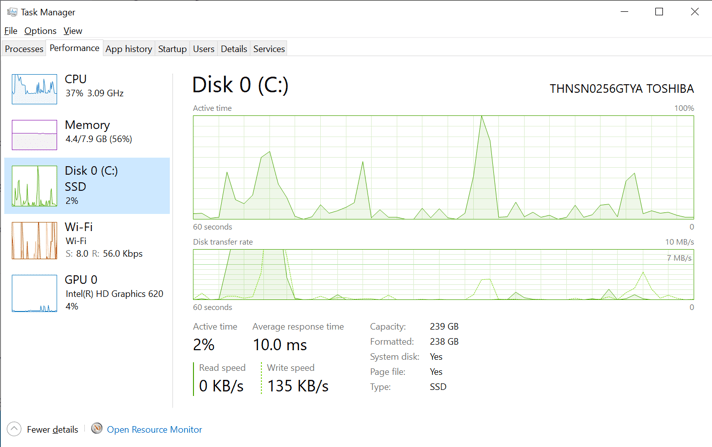
DISK TYPE NOW VISIBLE IN TASK MANAGER PERFORMANCE TAB
A small, but perhaps convenient change — you’ll now be able to see the disk type (e.g. SSD) for each disk listed in Task Manager’s performance tab. This is particularly helpful in cases where you have multiple disks listed, so you can differentiate between them.
 THE WHISTLING WIND